

Bulk Assignment Update
You have the ability to perform a bulk update for various assignment settings, including start date/time of the assignment, closing date/time of the assignment, action when assignment closes, due dates and penalties. For more information about these settings, see Assignment Duration, Prime Assignment Containers and Virtual Coach settings using a CSV file.
Before you begin, make sure to download the CSV template file. You can download the CSV template file of your course from “Download Assignment Information” present in the “Assignment settings” in the “Bulk Settings area”. You can update the fields as per your requirement(s) and use that CSV file to update the assignment settings. Here is a sample screenshot of the CSV template:

- Things you should know about the CSV template:
Header names must be same as row 1 of above CSV
If a specific field is empty then the respective setting will not be updated
All fields are case-insensitive so complete and COMPLETE are same
If Prime Setting is not enabled for the assignment but the prime_time is defined in the CSV then the Prime setting will be enabled automatically
Here is a reference guide on how to update your CSV template file:
Column Name |
Data Type |
Possible Values |
Description |
|---|---|---|---|
name |
text |
assignment name(s) |
The name of the assignment. |
visibility_on_completed |
text |
READ_ONLY_WITH_RESUBMIT, READ_ONLY, NO_ACCESS, NO_ACCESS_UNTIL_GRADES_RELEASED |
Access students have to a completed assignment. |
visibility_on_disabled |
text |
NO_ACCESS, READ_ONLY, NO_ACCESS_UNTIL_GRADES_RELEASED |
Access students have to a disabled assignment. |
start_time |
integer and text |
mm/dd/yyyy h:mm AM/PM (e.g., 05/02/2025 9:11 AM) |
Start date (mm/dd/yyyy), time (h:mm), and AM or PM. |
closing_time |
integer and text |
mm/dd/yyyy h:mm AM/PM (e.g., 05/26/2025 11:59 PM) |
Closing date (mm/dd/yyyy), time (h:mm), and AM or PM. |
closing_action |
text |
DISABLE_AND_COMPLETE, DISABLE, COMPLETE |
Actions to take when the assignment closes. |
due_at |
integer and text |
mm/dd/yyyy h:mm AM/PM (e.g., 05/23/2025 11:59 PM) |
Due date (mm/dd/yyyy), time (h:mm), and AM or PM. For more information, see Assignment Duration. |
mark_as_completed_on_due_date |
text |
TRUE, FALSE |
Marked completed on the due date. |
penalty_enabled |
text |
TRUE, FALSE |
Penalty for late submission of the assignment. |
deduction_interval |
text |
day, hour |
Penalty deduction interval |
deduction_percent |
integer |
any whole number |
Penalty deduction percent |
lowest_grade_percent |
integer |
any whole number between 0 and 100 |
Lowest possible grade a student can receive for this assignment. Note: For more information on penalty deductions, please see Penalties. |
allow_regrade_request |
text |
TRUE, FALSE |
Allow students to request for a regrade of their assignment. |
prime_time |
integer and text |
mm/dd/yyyy h:mm AM/PM (e.g., 05/08/2025 6:44 PM) |
Start time when you want the containers available. For more information, see Prime Assignment Containers. |
prime_count |
integer |
any whole number |
Number of students that will start the assignment at the same time. Note: For more information about this setting, please visit Prime Assignment Containers |
coach_summarize_prompt |
text |
TRUE, FALSE |
Student can request a summary of the assessment prompt. |
coach_error_augmentation |
text |
TRUE, FALSE |
Provide more detailed explanations for error message text on request. |
coach_next_steps_hint |
text |
TRUE, FALSE |
Student can request hints for completing the assessment requirements. |
Once you have updated/modified your CSV template file, you are now ready to bulk update the assignment settings.
To bulk update the assignments settings, follow these steps:
On the Courses page, click the course that contains the assignment you want to edit
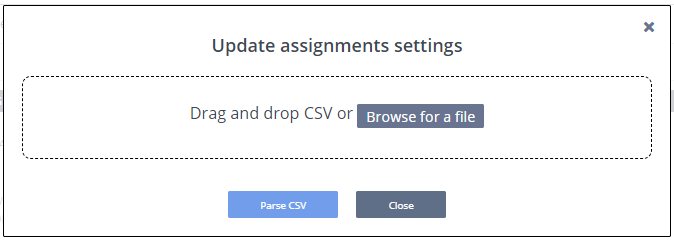
Go to Bulk Settings area and press Open Updater button from Update Assignment in the Assignment Setting area.
Select or drag and drop the CSV file in which you have defined all the required settings.
You will see the test result in the CSV Test Run section (you may also see the error messages if something is not correct in your CSV file)
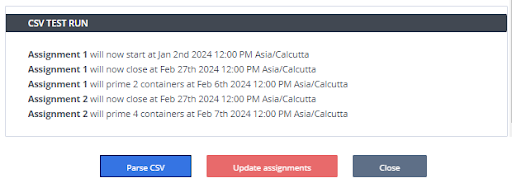
Click Apply to reflect these settings to your actual assignments settings