

Prompt Management
This feature allows instructors to store prompts at an organization level. These prompts have unique Prompt IDs that can be used in custom assistants.
Click your username in the top-right corner, then select Organization from the menu.
In the Organizations tab, click the name of your organization.
Click the Prompt Management tab and then click Add Prompt.

Creating the Prompt
Enter your prompt text and specify the data you want to include as context.
Each Prompt must have a unique Prompt ID. Prompt IDs can only contain uppercase letters, numbers, and underscores.
In the Text Area, enter your prompt text (user prompt or system prompt).
- Use the buttons to create templates to specify the data you want to add to your prompt as context:
Add Variable: Pass dynamic variables as context to your prompt (e.g., open guide page, open file, error message, etc.).
Add Instructor View: Pass a file from the
.guidesfolder (hidden from students) or a file from the student workspace with solution file templating. For example,{{"type": "INSTRUCTOR_VIEW", "filepath": "<path/to/file>"}}will pull the contents of the specified file.Add Starter Code: Pass a file from the student workspace provided by the instructor with no student edits (starter code/boilerplate).
You can use this feature to access solutions in the
.guides/securefolder. See the example below.Click Create once you have entered all the information.
Note
Files are retrieved dynamically on the server when the assistant is used. If a referenced file is deleted or doesn’t exist after the prompt is created, an empty string is sent as context.
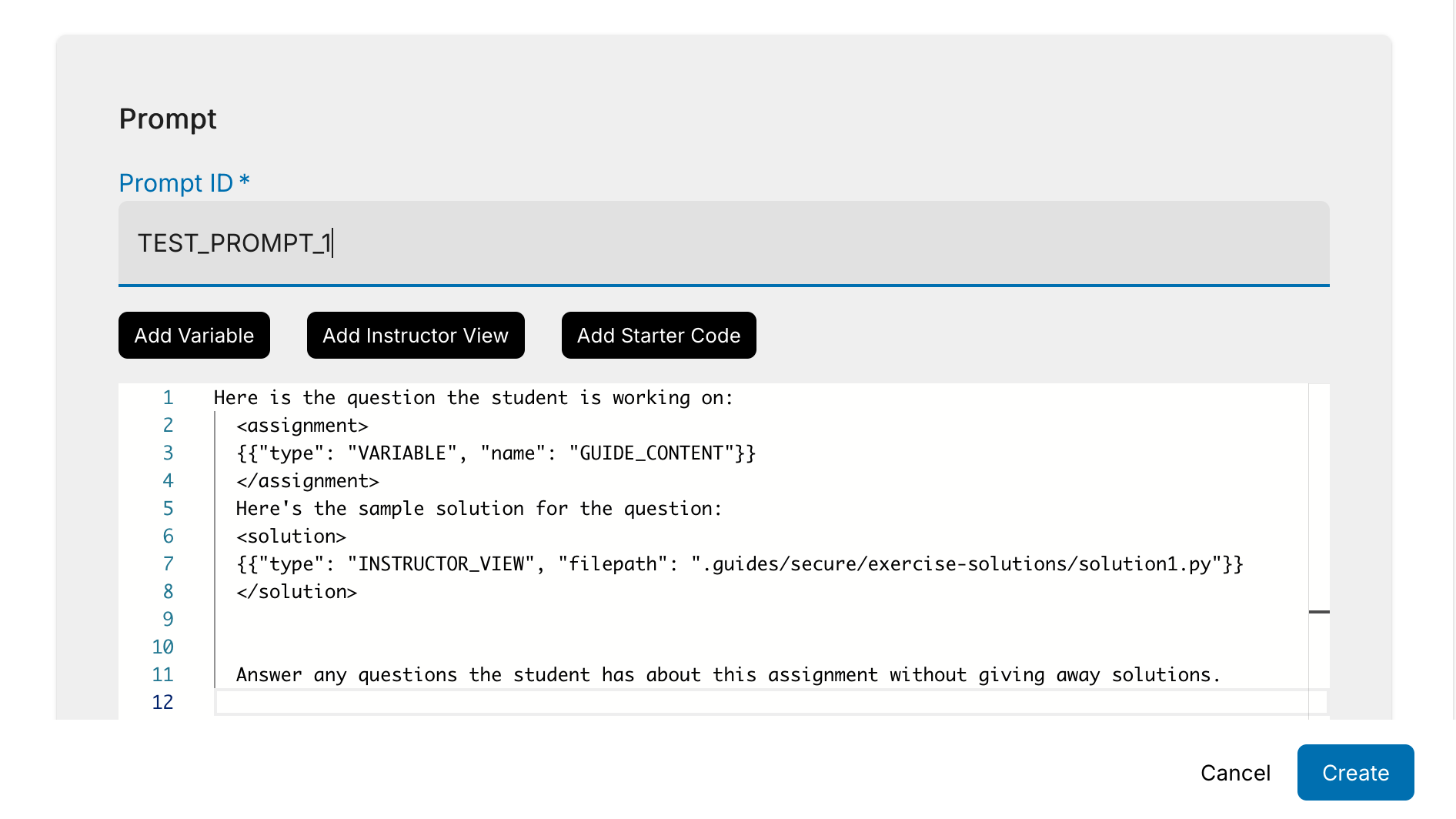
Example Prompts
Prompt Example 1: Secure Folder File
Here is the question the student is working on:
<assignment>
{{"type": "VARIABLE", "name": "GUIDE_CONTENT"}}
</assignment>

Here's the sample solution for the question:
<solution>
{{"type": "INSTRUCTOR_VIEW", "filepath": ".guides/secure/exercise-solutions/solution1.py"}}
</solution>

Answer any questions the student has about this assignment without providing the solution directly.
Respond only with suggestions to help them make progress by themselves.
Prompt Example 2: Starter Code and Solution File
Here is the question the student is working on:
<assignment>
{{"type": "VARIABLE", "name": "GUIDE_CONTENT"}}
</assignment>

Here is the solution file:
<solution>
{{"type": "INSTRUCTOR_VIEW", "filepath": "code/exercise1.py"}}
</solution>

Here's the starter code provided to the student:
<starter_code>
{{"type": "STARTER_CODE", "filepath": "code/exercise1.py"}}
</starter_code>

Here's the student current code file:
<student_code>
{{"type": "VARIABLE", "name": "STUDENT_FILE_CONTENT"}}
</student_code>

Provide 1-2 hints as suggestions to help them make progress. Do not give away the solution. Do not include code snippets in your hints.
Using the Prompt in a Custom Extension
(async function(codioIDE, window) {


const systemPrompt = "System Prompt for the LLM goes here"
codioIDE.coachBot.register("iNeedHelpButton", "I have a question", onButtonPress)


async function onButtonPress() {
const context = await codioIDE.coachBot.getContext()
const userPrompt = "{% prompt 'TEST_PROMPT_1' %}"
const result = await codioIDE.coachBot.ask({
    systemPrompt: systemPrompt,
    userPrompt: userPrompt,
    vars: {
        "GUIDE_CONTENT": context.guidesPage.content,
    }
})
}
})(window.codioIDE, window)
Using Wildcards to Reference Files in Custom Assistants
You can use wildcards to reference files. These are useful when your assignments contain files with different names. Wildcards follow standard glob patterns (e.g., * matches zero or more characters).
Note
When multiple files match, the first match in alphabetical order is selected.
Here is an example:
Here is the question the student is working on:
<assignment>
{{"type": "VARIABLE", "name": "GUIDE_CONTENT"}}
</assignment>
Here's the sample solution for the question:
<solution>
{{"type": "INSTRUCTOR_VIEW", "filepath": ".guides/secure/lab*.py"}}
</solution>
Here's the starter code for the assignment:
<starter>
{{"type": "STARTER_CODE", "filepath": "lab*.py"}}
</starter>