

Bulk Assessment Update
You can bulk update many assessment settings, including points, partial points, use of maximum score, show expected answer, number of attempts, and showing rationale to students.
Before you begin, make sure to download the Excel (.xlsx) template file. You can download the Excel (.xlsx) template file for your course from Download Assessment Template in the Assessment Settings section of the Bulk Settings area. Update the fields as per your requirements and use that Excel (.xlsx) file to update the assessment settings.
Here is a sample screenshot of the template:

- Important notes about the template:
Edit only the white cells with dropdowns or number inputs.
Leave any cell set to No Change to keep the current published setting.
Gray cells labeled Not Supported or Restricted cannot be edited for the selected assessment type.
Save the file in XLSX format before uploading.
Template field reference:
Column |
Description |
Available Options |
|---|---|---|
Assessment Type |
Type of assessment |
Predefined - cannot be modified |
Points |
Point value for assessment |
Numeric value (e.g., 20, 50, 100) |
Allow Partial Points |
Whether partial credit is allowed |
Yes, No, No Change, Not Supported |
Use Maximum Score |
Whether to use maximum score |
Yes, No, No Change, Not Supported |
Show Expected Answer |
When to show expected answer |
Always, Never, When Grades Are Released, No Change, Not Supported |
Defined Number of Attempts |
Number of attempts allowed |
No, 1-9, No Change, Not Supported |
Show Rationale to Student |
When to show rationale |
Always, Never, When Grades Are Released, Attempts, Score, No Change, Not Supported |
Value (for ATTEMPTS/SCORE) |
Numeric threshold for Attempts or Score |
1-99 (attempts), 0-100 (score %), blank otherwise |
Once you have updated your Excel (.xlsx) template file, you are ready to bulk update the assessment settings.
To bulk update the assessment settings, follow these steps:
On the Courses page, click the course you want to update the assessment settings for.
Go to Bulk Settings area and scroll to the Assessment Settings section.
In the Assessment Settings section click Open updater.
Select or drag and drop the Excel (.xlsx) file in which you have defined all the required settings.
Select the assignments you want to modify.
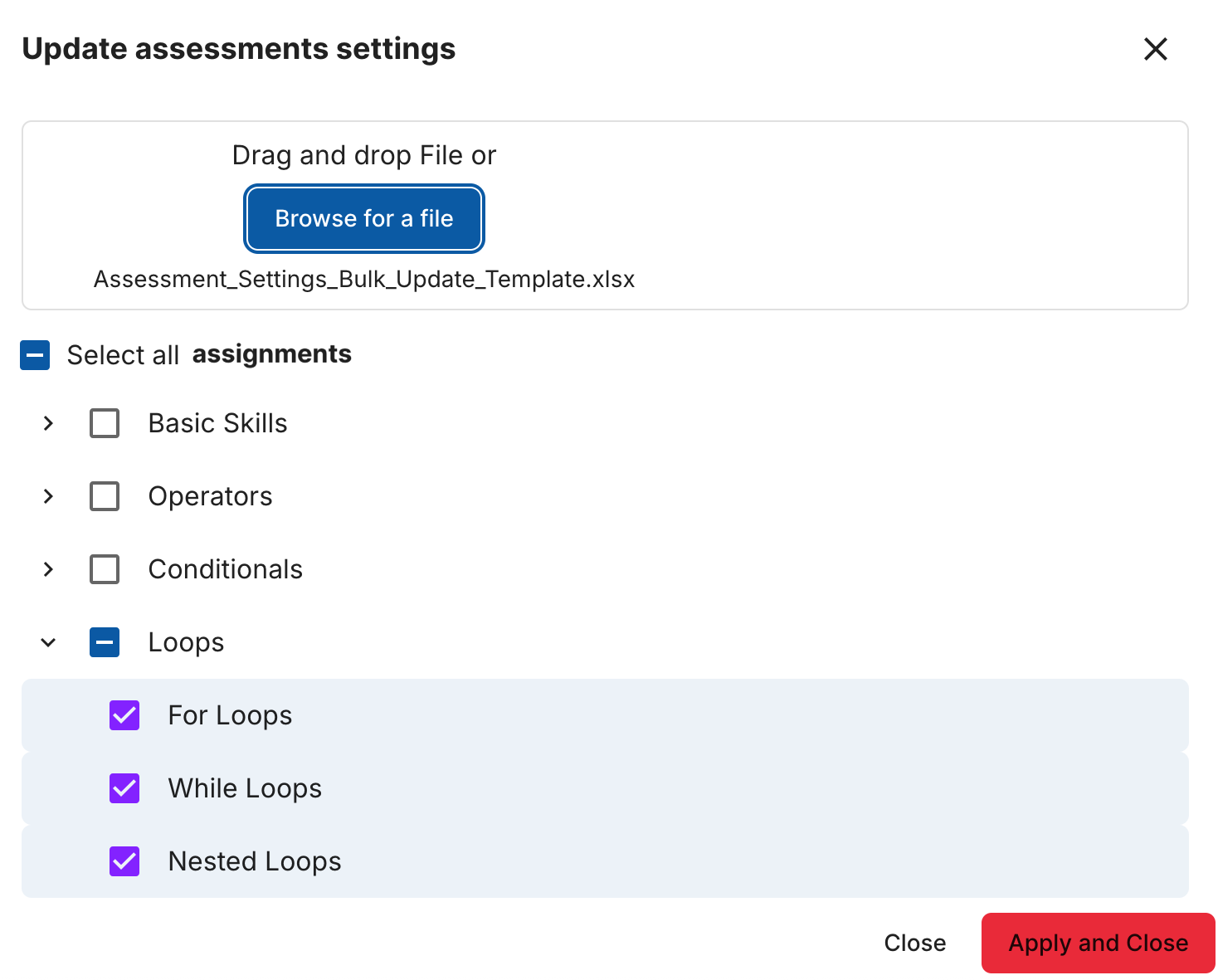
Click Apply and Close. A popup window will appear asking you to confirm, click Yes.
Note
A green banner will appear at the bottom of the page letting you know your updates are processing. Once the update is complete you will receive an email from Codio.