

Bookstore Portal
About the Bookstore Portal
The Codio Bookstore Portal lets campus bookstores order Codio access codes for their students. From the portal, you can sign up your bookstore, place orders for access codes, and follow the status of each order.
The portal is available at https://bookstore-portal.codio.com.
Note
Password-less sign-in: The Bookstore Portal does not use passwords. Each time you sign in, the portal emails you a single-use magic link that signs you in.
Signing Up Your Bookstore
Before you can place orders, your bookstore needs an approved account. Codio reviews every signup before activating the account.
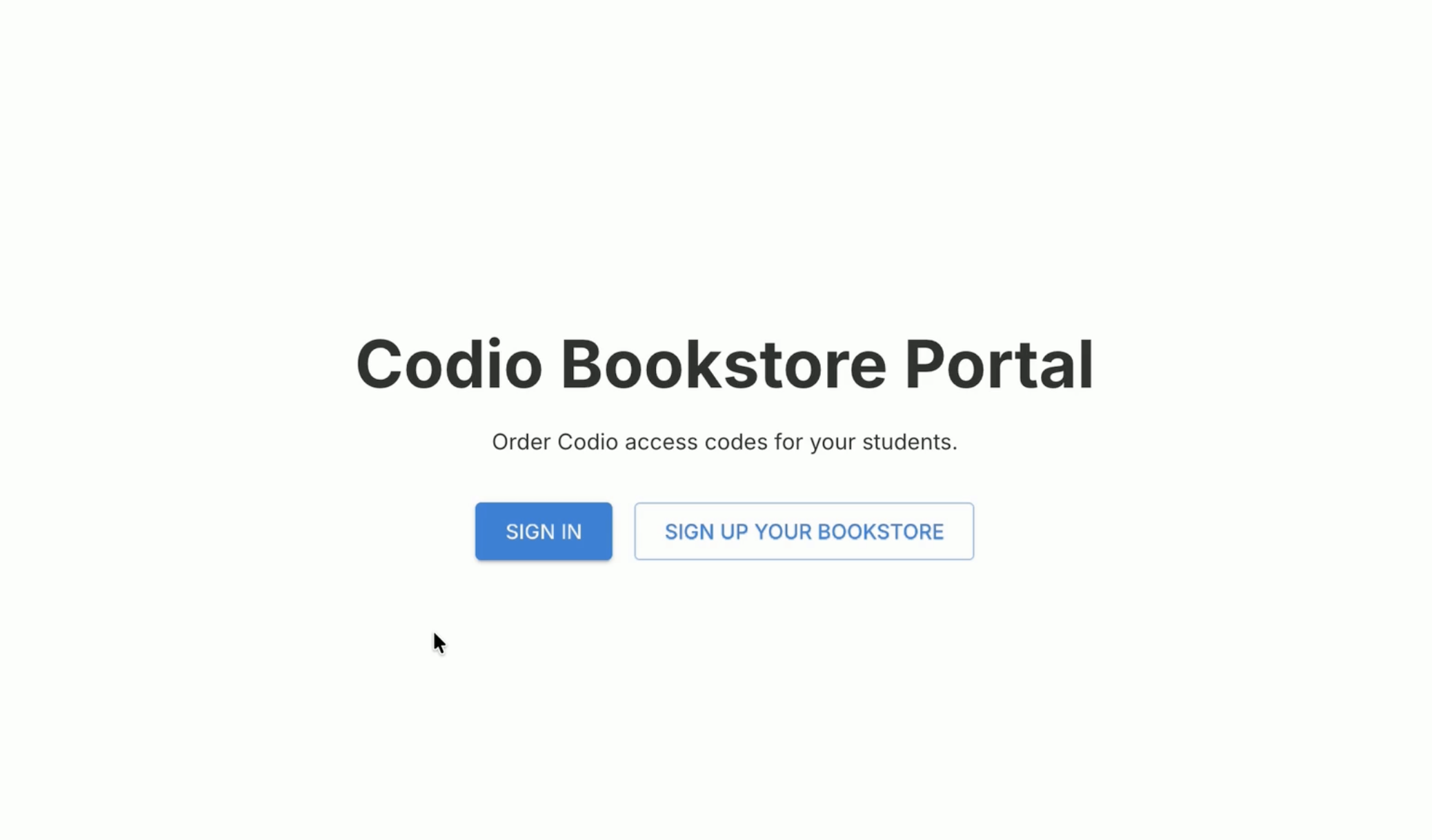
Go to https://bookstore-portal.codio.com and click Sign Up Your Bookstore. You can also click the Sign up your bookstore link on the Sign in page.
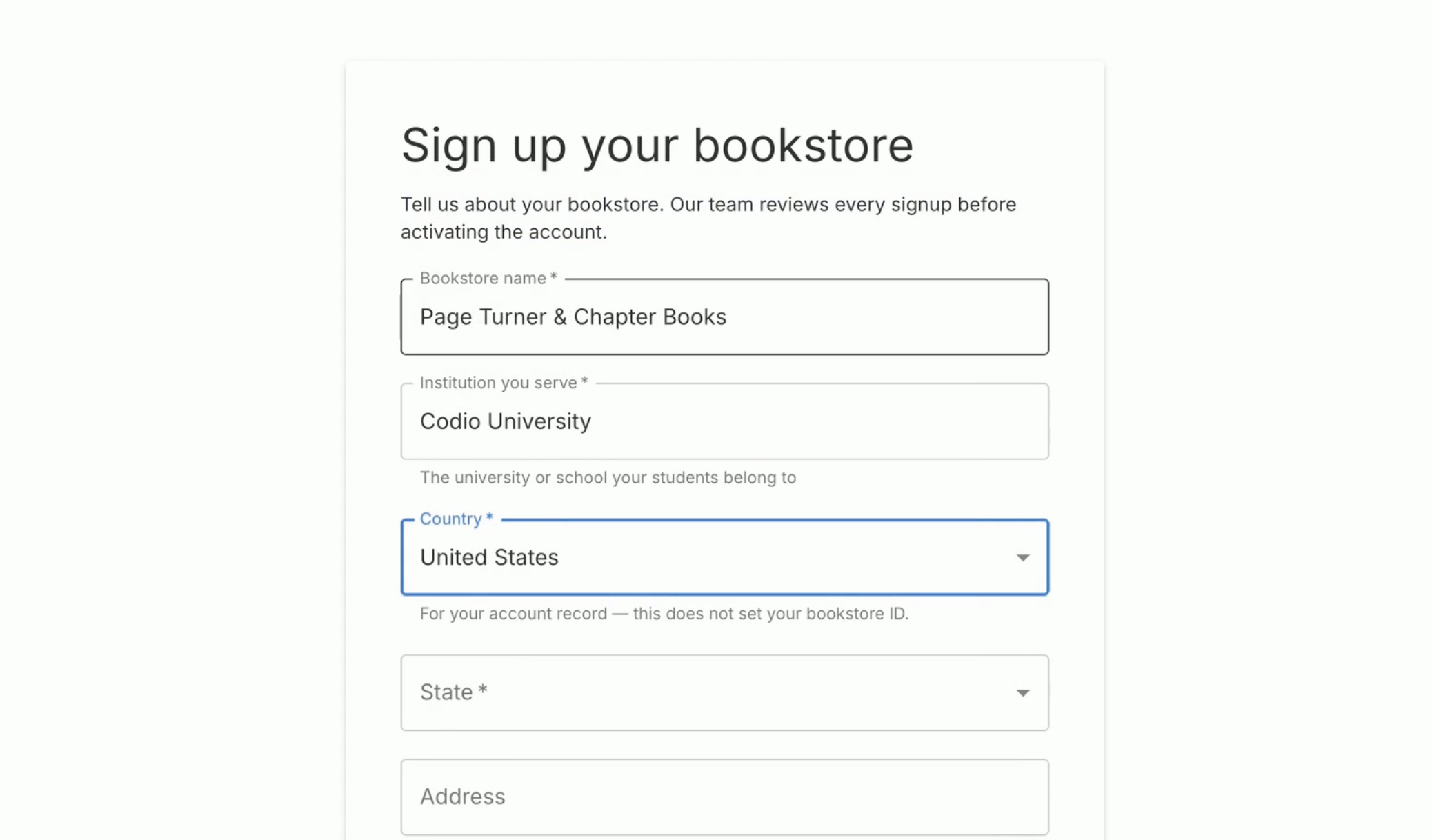
Complete the form. The fields are described in the table below.
Click Submit Signup.
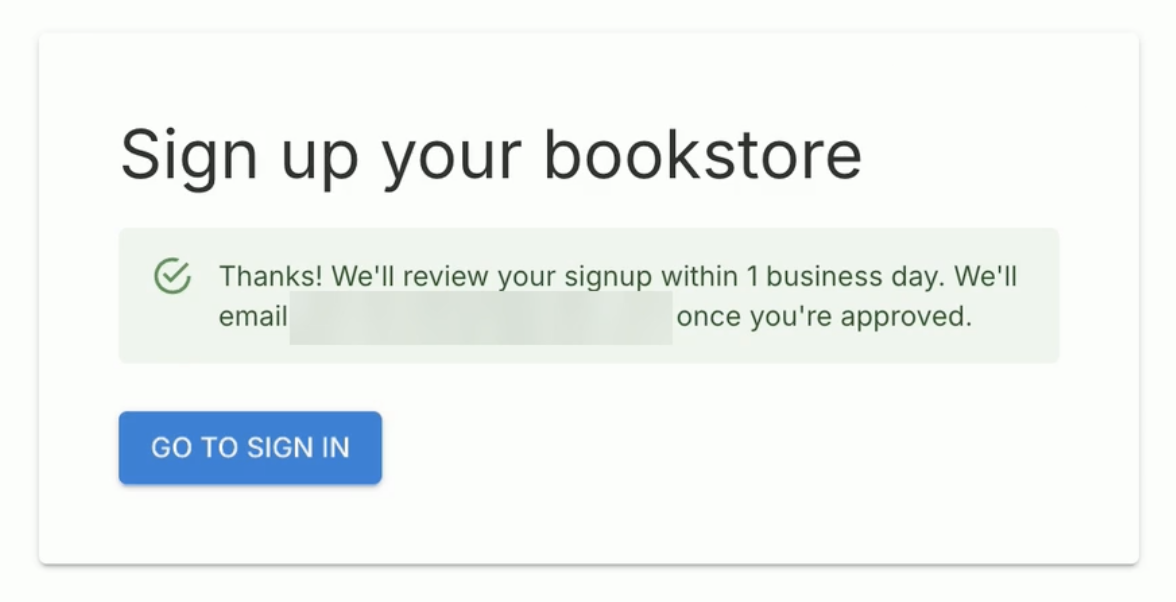
A confirmation message appears. Codio reviews your signup within one business day and emails you once your account is approved.
Important
You cannot sign in until Codio approves your account. Wait for the approval email before you request a magic link.
Signup fields
Field |
Required |
Description |
|---|---|---|
Bookstore name |
Yes |
The name of your bookstore. |
Institution you serve |
Yes |
The university or school your students belong to. This value appears as the institution on every order. |
Country |
Yes |
The country of your bookstore. It is used for your account record only and does not set your Bookstore ID. |
State |
Conditional |
Required when Country is United States. |
Address |
No |
The street address of your bookstore. |
ZIP code |
Conditional |
Required for United States addresses. Optional for international addresses, where the field is labeled ZIP / postal code (optional). |
Your email |
Yes |
The email address you use to sign in and manage the account. Magic links are sent to this address. |
Your name |
Yes |
The name of the account contact. |
Phone |
No |
A contact phone number. |
Anything we should know? |
No |
Any additional information for the Codio review team. |
Signing In
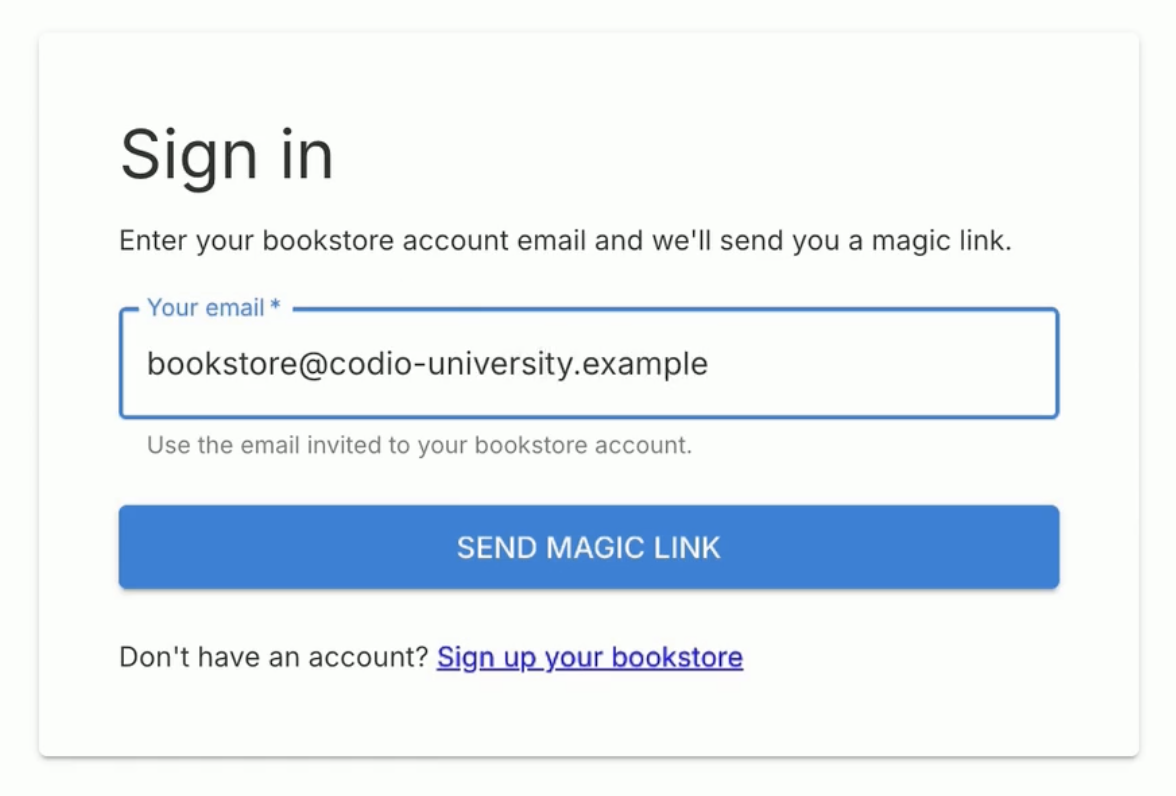
Go to https://bookstore-portal.codio.com and click Sign In.
Enter the email address associated with your bookstore account and click Send Magic Link.
The Check your email page appears. For security reasons, this page looks the same whether or not an account exists for the email you entered. If no email arrives, make sure you used the correct address and that your account has been approved.
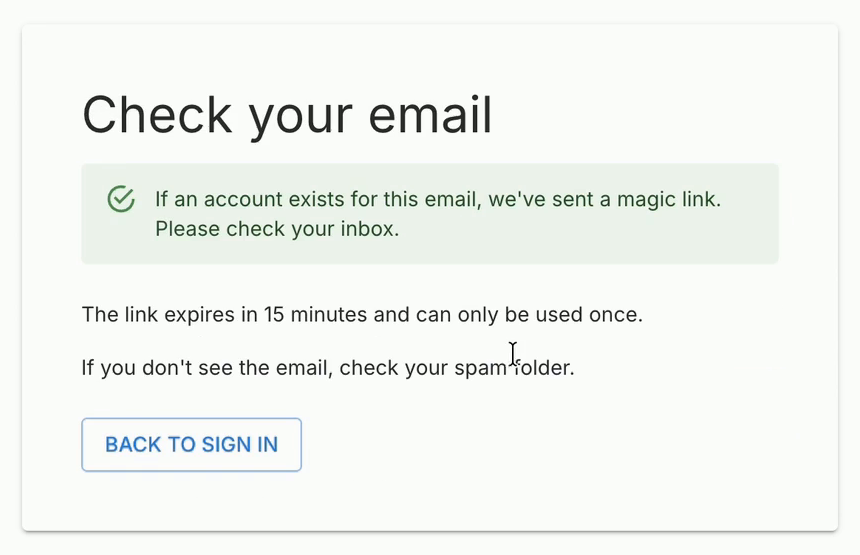
Open the email from Codio and click the magic link. Your dashboard opens.
Important
The magic link expires after 15 minutes and can be used only once. If your link has expired, or you have already used it, return to the Sign in page and request a new one. If you don’t see the email, check your spam folder.
Dashboard
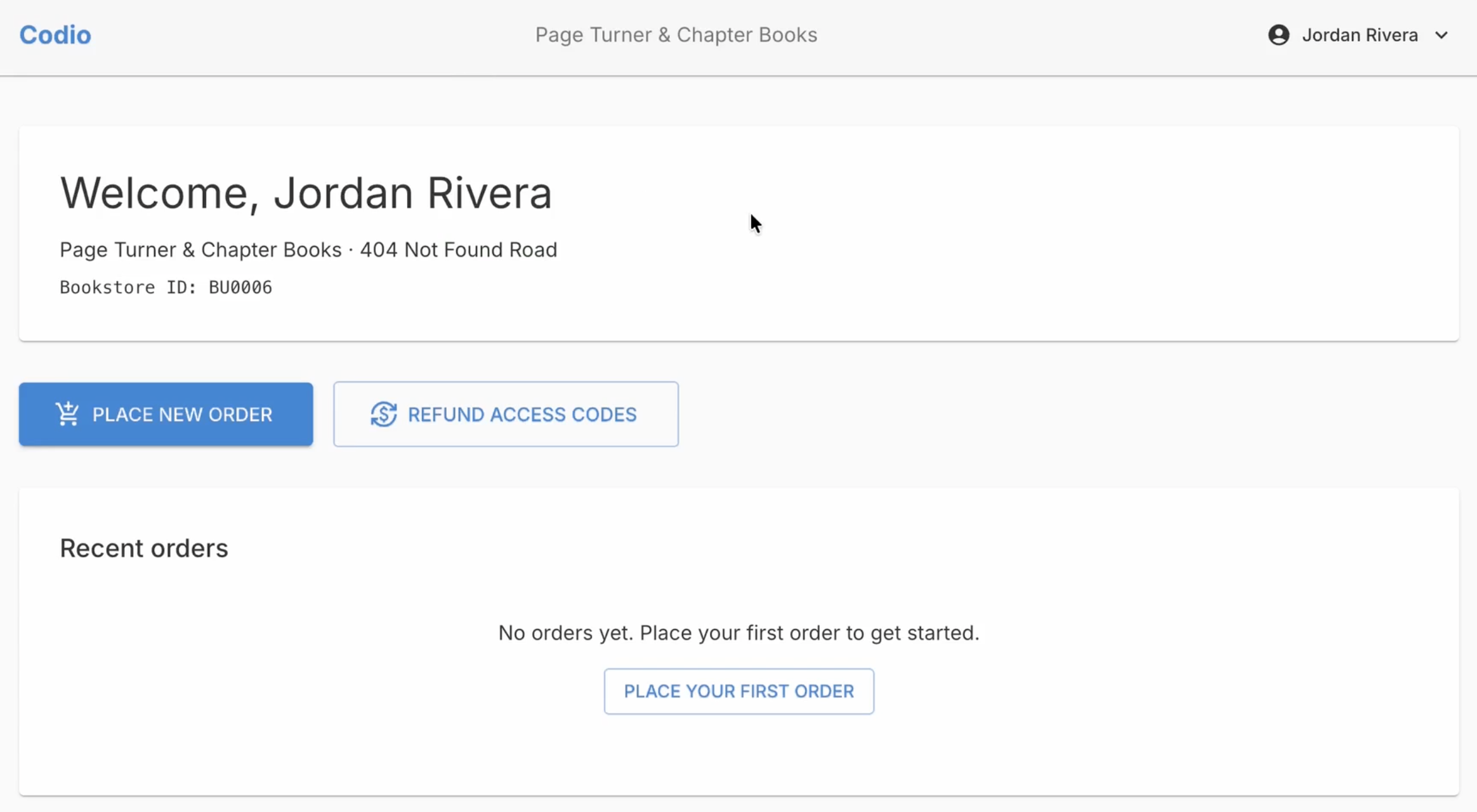
After you sign in, the dashboard shows your bookstore name, address, and Bookstore ID. From the dashboard you can:
Click Place New Order to order access codes.
Click Refund Access Codes to request a refund.
Review your previous orders under Recent orders.
Placing a New Order
On the dashboard, click Place New Order. If you have not placed any orders yet, you can also click Place Your First Order under Recent orders.
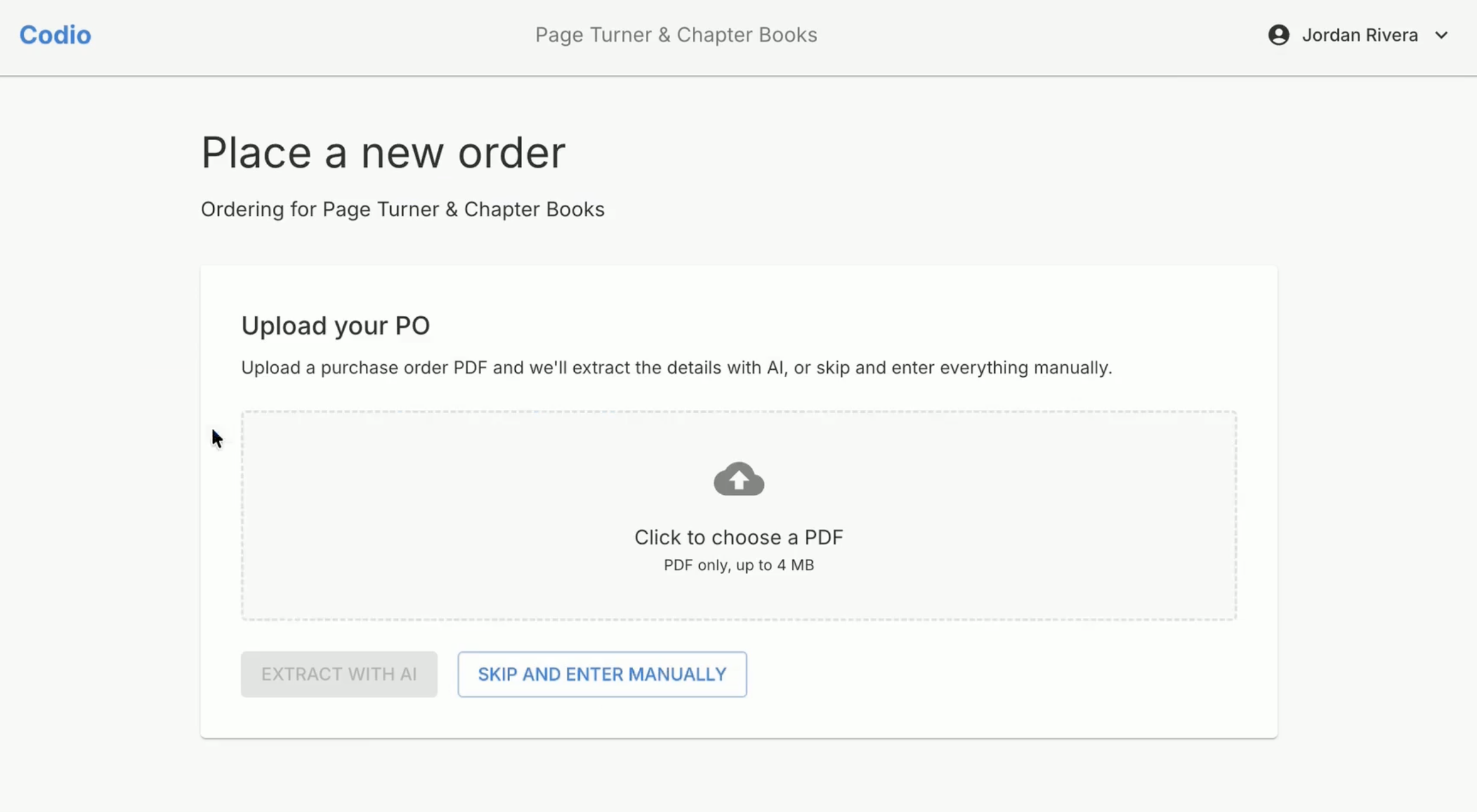
On the Upload your PO step, choose one of the following options:
Upload a purchase order (PO): Click the upload area, choose your PO file, and click Extract with AI. The portal reads the PO and fills in the order details for you. The file must be a PDF of up to 4 MB.
Enter the details yourself: Click Skip and Enter Manually.
Note
The Extract with AI button is available only after you choose a PDF. Always review the extracted details before you submit the order.
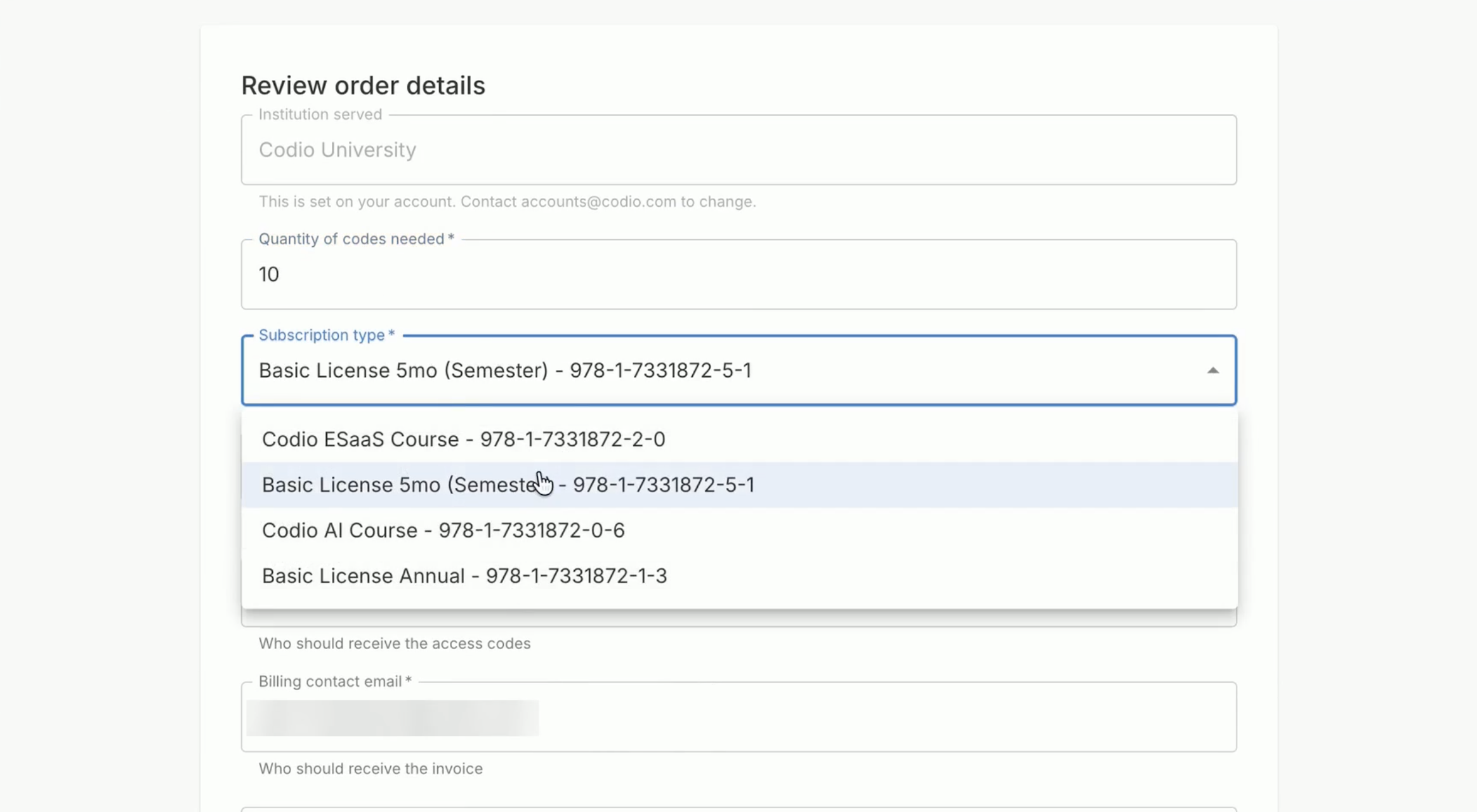
Complete the Review order details section. The fields are described in the table below.
Scroll down to the Confirmation section and review the order summary, including the Unit price and Total.
Click Submit Order.
The Order details page opens with the status Processing. Codio prepares your access codes and invoice, and the page updates automatically.
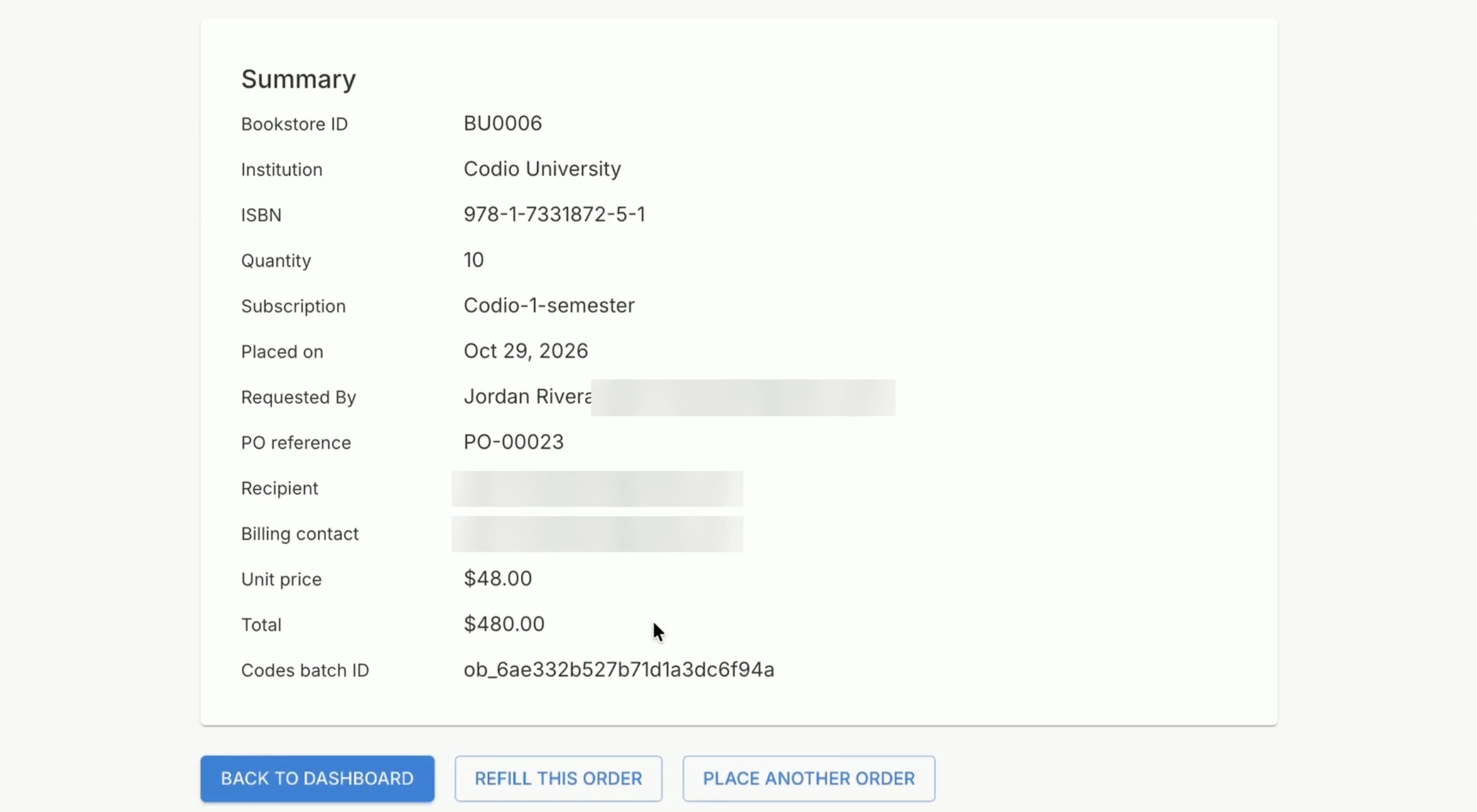
From the Order details page, click Back to Dashboard to return to the dashboard, or Place Another Order to start a new order.
Order fields
Field |
Required |
Description |
|---|---|---|
Institution served |
Read-only |
Set on your account during signup. To change it, contact accounts@codio.com. |
Quantity of codes needed |
Yes |
The number of access codes to order. |
Subscription type |
Yes |
The product to order. Each option shows the product name and its ISBN. |
PO reference number |
No |
Your purchase order number, for your records. |
Recipient email |
Yes |
The email address that receives the access codes. |
Billing contact email |
Yes |
The email address that receives the invoice. |
Notes for Codio |
No |
Any additional information about the order. |