

Smart Import
Use Smart Import to import existing content into your Codio course as assignments. Smart Import automatically creates a Codio Guide for each assignment. It converts your source document into Markdown that best represents its structure, including heading levels, lists, and code blocks. It also adds the code files from your source to the assignment layout, so the guide displays on the right and the code files display on the left.
Smart Import examines the contents of your uploaded materials to determine the programming language used and assigns the appropriate technology stack to the assignment. You do not have to build the guide, configure the layout, or manually select a stack.
Smart Import supports three sources:
Files — Upload individual files from your computer (32 MB limit).
Archive — Upload an archive file from your computer.
GitHub — Import the contents of a GitHub repository, including repositories used with GitHub Classroom.
Each Smart Import operation creates one assignment, but you can run multiple imports concurrently. Start an import, then begin the next one while the first is still processing.
Import an Assignment
Open your course and click Edit Assignments in the navigation pane on the left.
If your course does not have a module yet, click Add Module to create one.
Click Add Assignment.
Click Smart Import.
Click the Source drop-down and select your source:
Files — Click the Select files box and select the files you want to import in the file browser window that opens.
Archive — Click the Select archive file box and select the archive file you want to import in the file browser window that opens.
GitHub — Enter your GitHub repository URL.
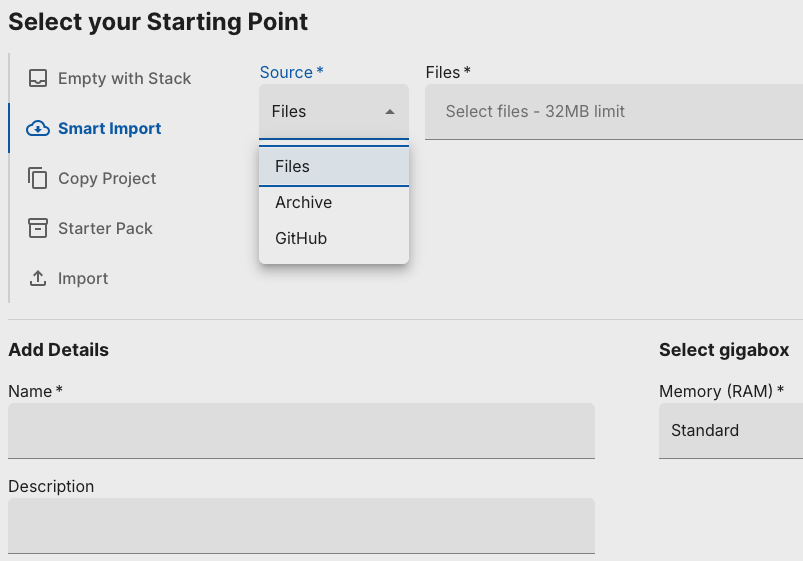
Enter a name for the assignment. You can also enter a description.
Click Create.
The assignment appears in your module with an importing status. When the import completes, Codio generates the guide and layout from your source content automatically.
Preview and Publish an Assignment
Assignments created with Smart Import are saved as drafts. Students cannot access a draft assignment until you publish it. Preview each assignment to confirm the generated guide meets your needs, and then publish it to make it available to your students.
Click Edit Assignments and click the assignment to preview it.
To make changes, click Edit, modify the assignment, and then click Preview to review your updates.
When the assignment is ready for your students, click Publish, and then click Publish again to confirm.
The assignment status changes from draft to published, and students can now access it. Published assignments also appear on your course Overview dashboard.