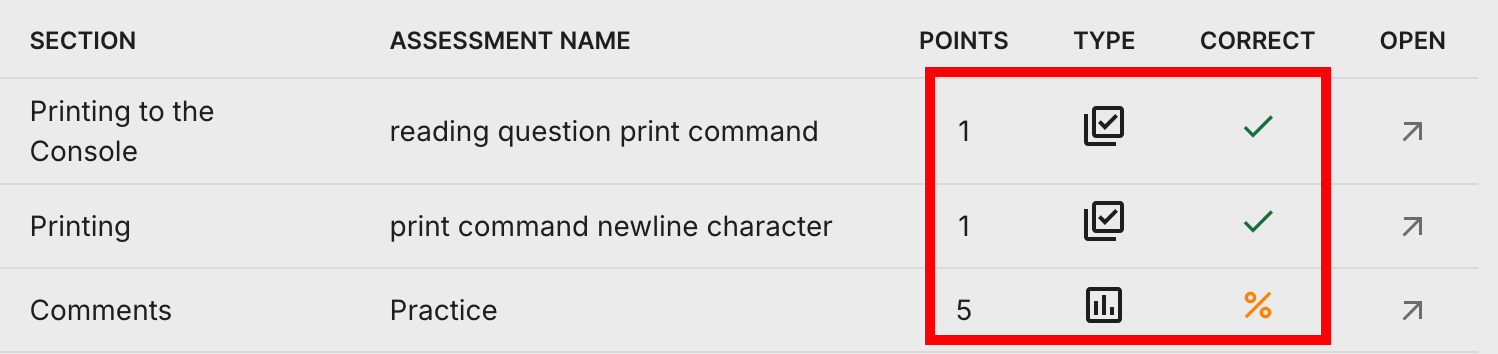

LLM Free Text
The LLM Free Text assessment type lets students respond to questions in their own words. It supports LaTeX formatting, making it especially well-suited for math-based assessments.
Responses are open-ended and are graded manually by the instructor with AI assistance. Feedback is displayed to students only after the instructor approves it, unless Preliminary AI Feedback is enabled, in which case students receive immediate automated feedback upon submission.
You can find this assessment type under the Manually Graded section of the assessments menu.
Assessment Creation
Follow these steps to set up an LLM Free Text assessment. For more information on General, Metadata (optional), and Files (optional), see Assessments.
Complete General.
Click Grading in the navigation pane and complete the following fields:
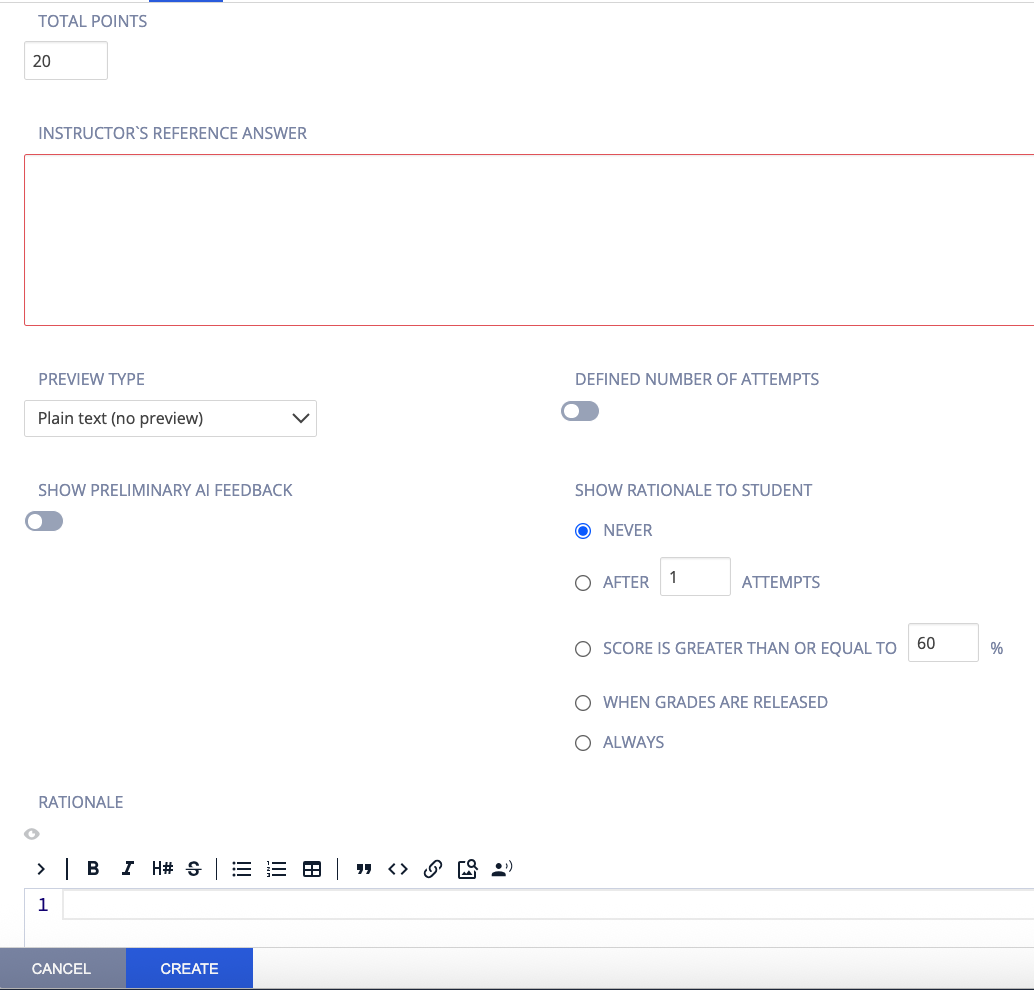
Points — Enter the point value for a correct answer. You can use any positive number. Enter zero (0) for ungraded assessments.
Instructor’s Reference Answer — Enter a reference answer in the field provided.
Preview Type — Select the input format students will use when writing their answer. LaTeX is recommended when students need to enter mathematical formulas.
Format Type
Description
Plaintext
Students enter plain text with no formatting support. No preview window is shown.
Plaintext + LaTeX
Students enter plain text with LaTeX support. A preview window displays the rendered LaTeX output.
Markdown + LaTeX
Students enter Markdown with LaTeX support. A preview window displays the rendered Markdown and LaTeX output.
Define Number of Attempts — Toggle on to limit the number of submission attempts. If left off, students can attempt the assessment an unlimited number of times.
Preliminary AI Feedback — Toggle on to provide students with immediate AI-generated feedback upon submission. The LLM compares the student’s response to the instructor’s Reference Answer and indicates how well they scored.
Show Rationale to Students — Toggle on to display rationale to students after submission or when they revisit a completed assignment. Control when it appears by selecting Never, After x attempts, If score is ≥ x% of total, or Always.
Rationale — Enter guidance or commentary for the assessment. This is always visible to the instructor and can optionally be shown to students depending on the Show Rationale to Students setting above.
Click Create to finish.
Grading LLM Free Text Assessments
To review and grade student responses, follow these steps:
Select the assignment.
Find the student you want to grade and click the number under Points to view all assessments in the assignment.
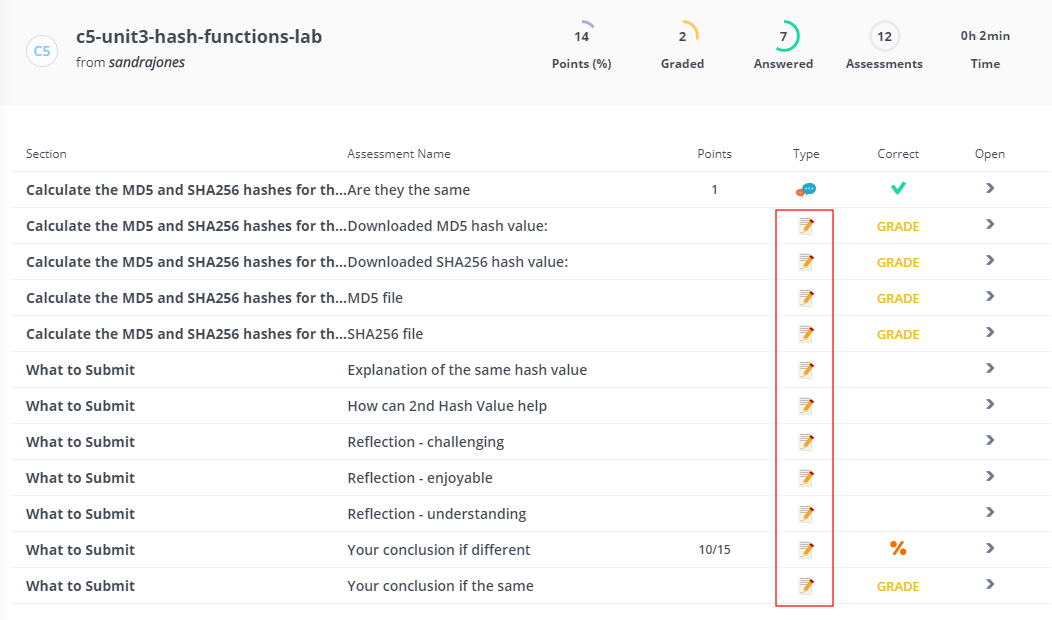
LLM Free Text assessments are identified by this icon in the Type column:
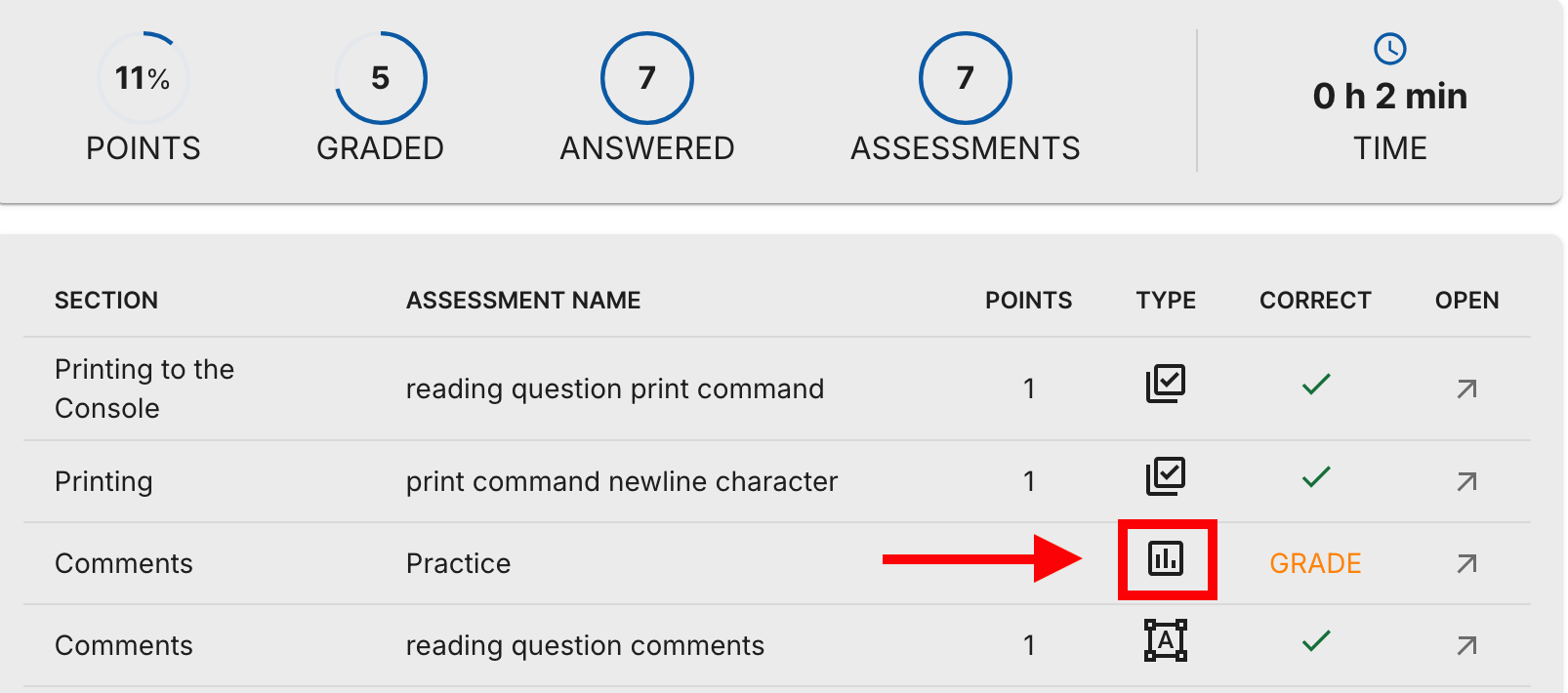
Click any row to view the question and the student’s submitted answer.
Review the student’s answer and preliminary results.
In the Feedback section, you can update or modify the feedback displayed to the student.
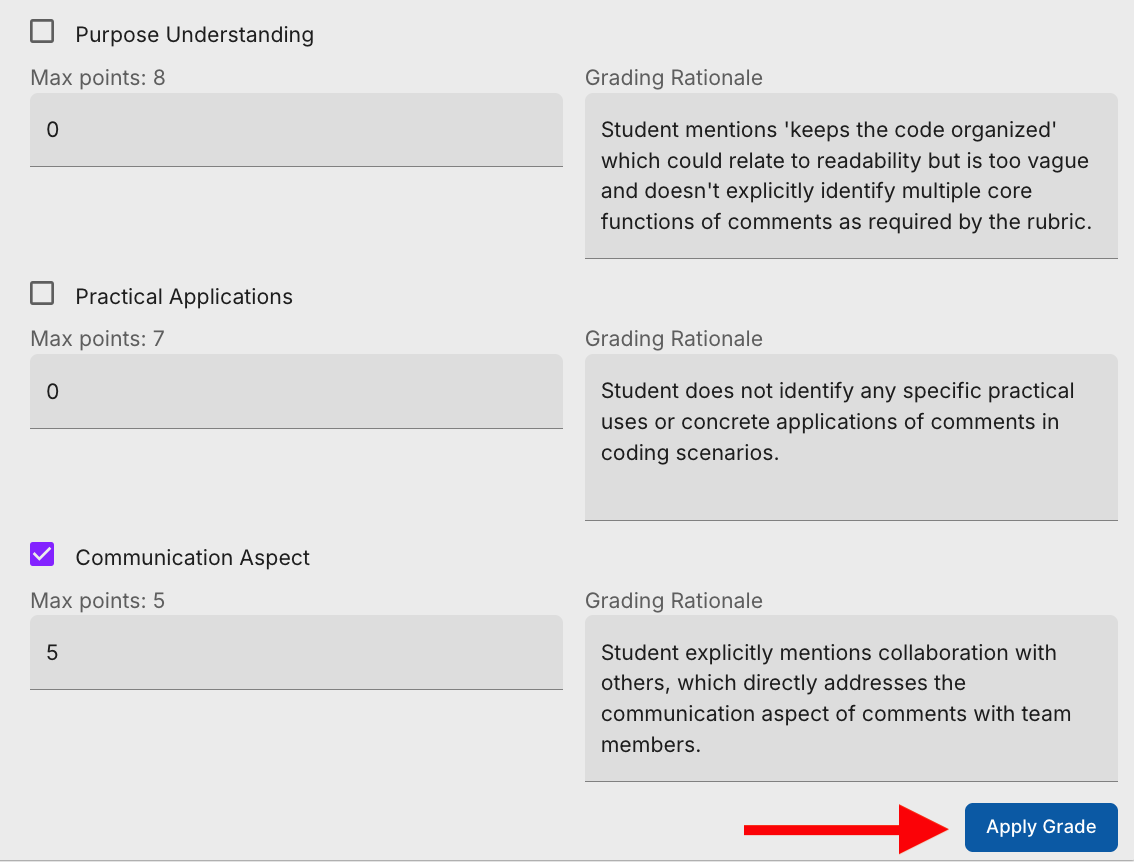
In the Test Cases section, review each test case and check the checkbox to accept it, or uncheck to reject it. You can also adjust the points and grading rationale for each.
Once finished, click Apply Grade in the bottom right.
Navigate Student Assessments
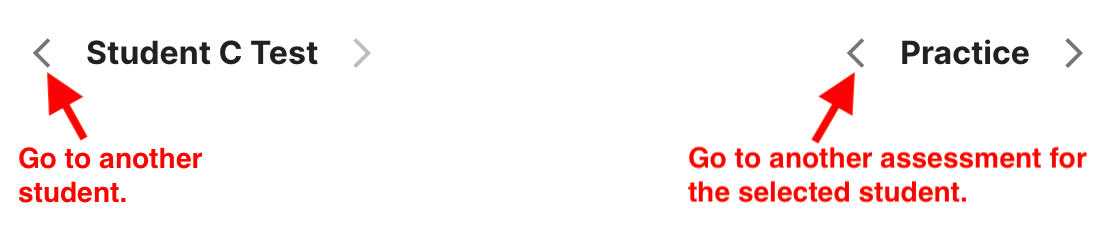
Use the left (<) and right (>) arrow buttons at the bottom of the Assessments Grading dialog to move between student submissions.
View Graded LLM Free Text Assessments
Once graded, you can view the points awarded and the checked status in the Correct column for all free text assessments.